
You can buy tickets directly from Ticketlab event pages. This guide walks you through the steps involved in getting tickets to an event, and what to expect next.
If the tickets cost money, there are four steps: Select tickets, Enter Your Details, Payment, and Enjoy! For free tickets, there’s no payment step.
Already bought tickets? Managing your tickets explains how to resend the ticket email, save a ticket PDF, or if you bought multiple tickets, send each member of your party their own ticket for independent entry.
Select tickets
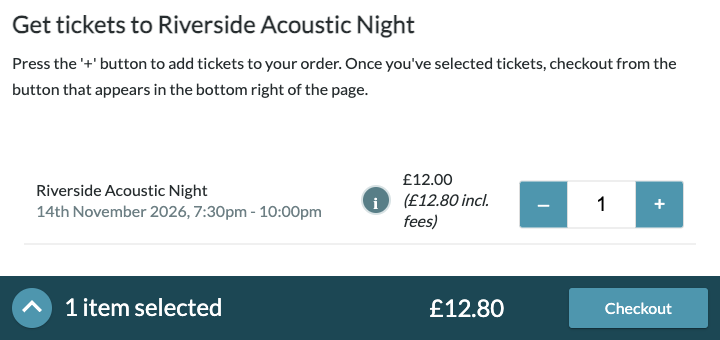
Set how many tickets you want. Paid tickets show the ticket price, and the amount including the booking fee in brackets, marked incl. fees. Free tickets have no booking fees.
Once you’ve added tickets, a bar appears at the bottom of the page showing what you’ve selected and giving you the option to Checkout.
A few events add something at this step:
- If a password is required, you’ll need to enter that before selecting tickets. Press Verify password before proceeding.
- Seats to choose. Pick yours on the plan first. The page says Select seats above to continue, then Seats held for and a countdown. If that time runs out, go back and choose the seats again.
If you cannot buy yet, you may see a message instead of a number to choose, such as Sold out, Event not on sale, or the date the tickets go on sale.
Your details
Enter your First name, Surname and Email address. Any extra questions from the organiser are also listed here and are required too.
Some events ask for each person separately. You will see Ticket 1, Ticket 2, and so on, each with a name and email address. Each of those people is sent their own ticket.
You can still change how many tickets you want on this page.
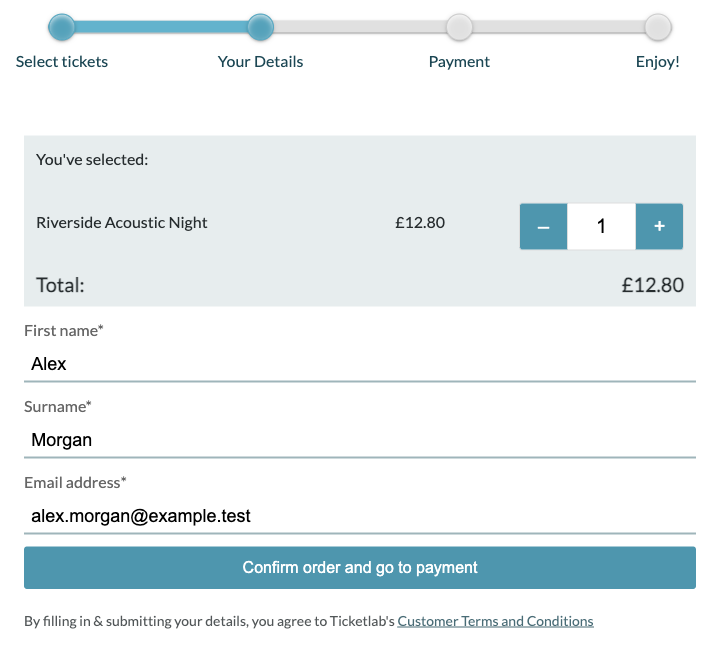
Press Confirm order and go to payment. As mentioned previously, there’s no payment due for free tickets.
Submitting your details means you agree to the Customer Terms and Conditions.
Payment
Paid orders show a card form. Press Submit Payment. The button changes to Processing payment… while it goes through.
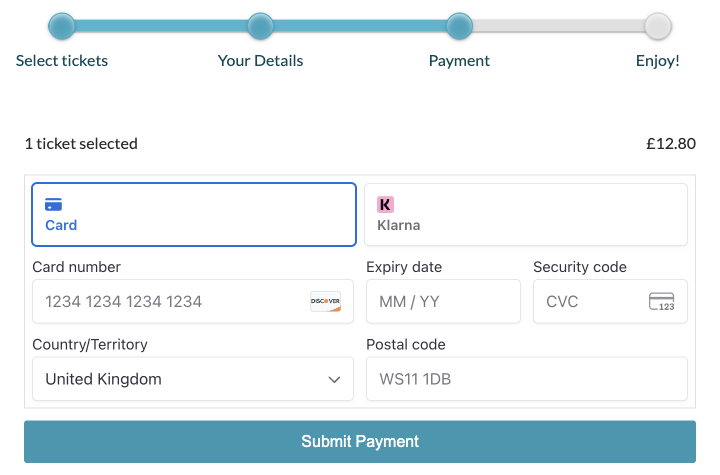
The page then says it is confirming your payment. When that finishes, it says your tickets will arrive in your inbox shortly.
If the page says the payment is still being confirmed, or that it could not verify the payment just now, do not pay again. Check your email first. If nothing arrives, contact Ticketlab.
After you pay
The last step says Thanks very much for your order.
For a paid order it confirms the payment and shows your ticket reference and the total. Your tickets are automatically emailed to you, but you can also download a ticket PDF at this stage. Press Download Tickets to save the PDF to your device. If the PDFs are not ready yet, the page says your tickets are still being issued, which can take a couple of minutes. The tickets are still valid. Use the email, or come back through Managing your tickets to download the PDF later.
The ticket email
The email subject is Your tickets: followed by the event name. It is sent to the address you entered. If you gave an email for each person, each person gets their own.
The email itself is the ticket. It shows:
- The event name, date, time and venue
- The quantity, the price per ticket, and the booking reference
- The lead booker’s name
- A QR code, with the same reference printed beside it
At the event, simply show this ticket email on your phone, or print it, so door staff can scan the code. One email admits the number of people under Quantity, unless each person was given their own ticket.
Your ticket may also contain extra terms and conditions or a message from the organiser if they’ve added it.
Give it a couple of minutes, and check spam if it doesn’t come through in a few minutes. You can also resend it from Managing your tickets.
Refunds
If the event is still going ahead as advertised, Ticketlab does not offer refunds. See Refunding a ticket for how to ask the organiser, and for what happens if the event is cancelled.
Need help?
Message the organiser from the event page, under Questions about this event? Or contact Ticketlab and include the booking reference from the email.
Leave a Reply
You must be logged in to post a comment.