
Use Manage tickets to see bookings made with your email address, download a PDF, resend the ticket email, or split a group booking into one ticket per person.
For how the purchase and the first email work, see Buying tickets.
To ask about a refund, see Refunding a ticket.
Sign in
Open ticketlab.app/manage-tickets. Enter the email address you used when booking, then press Send secure link and code.
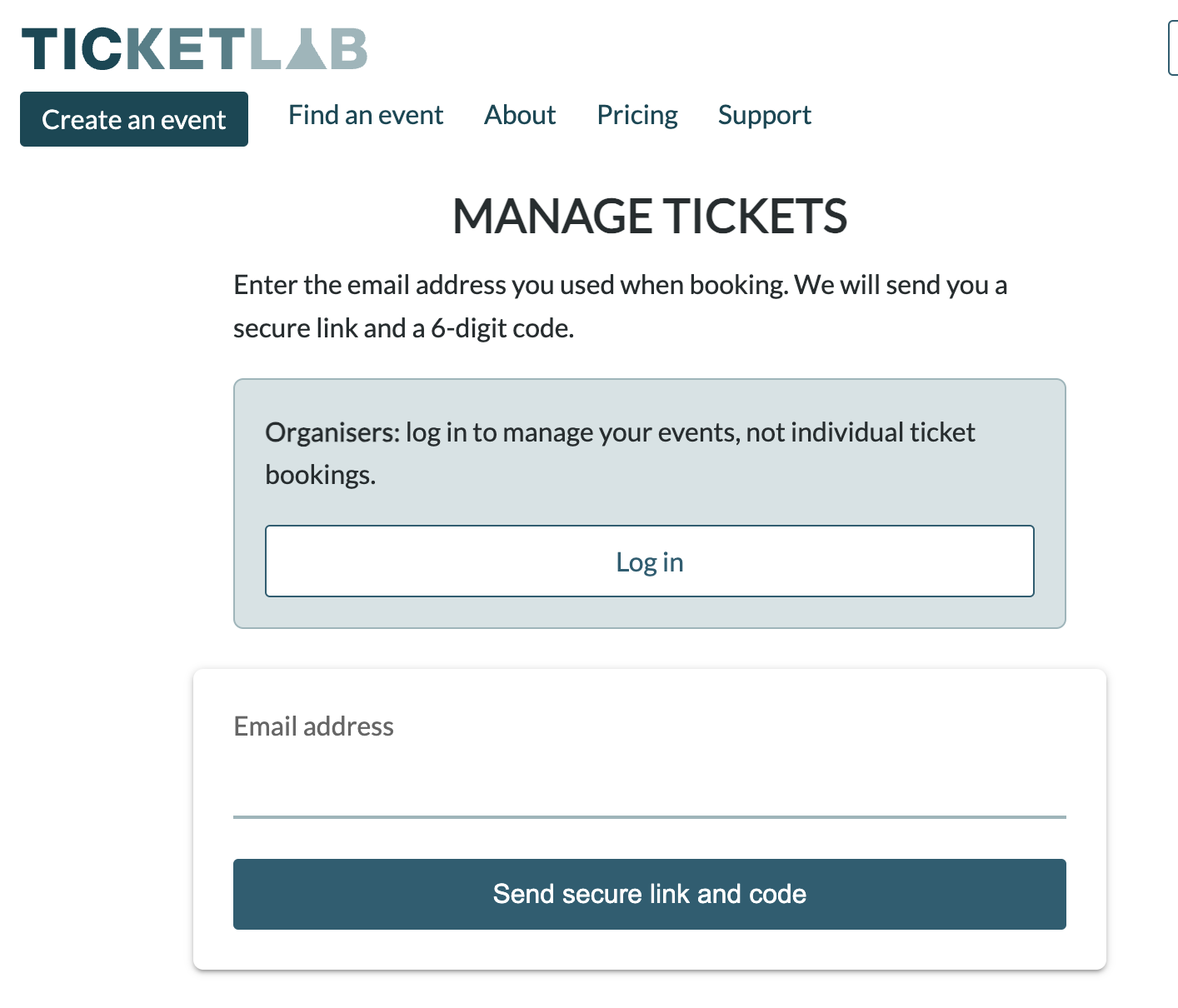
You do not need a Ticketlab password. The email subject is Your Ticketlab manage tickets code. Manage my tickets signs you in. Or enter the 6-digit code on the verification page and press Verify and continue.
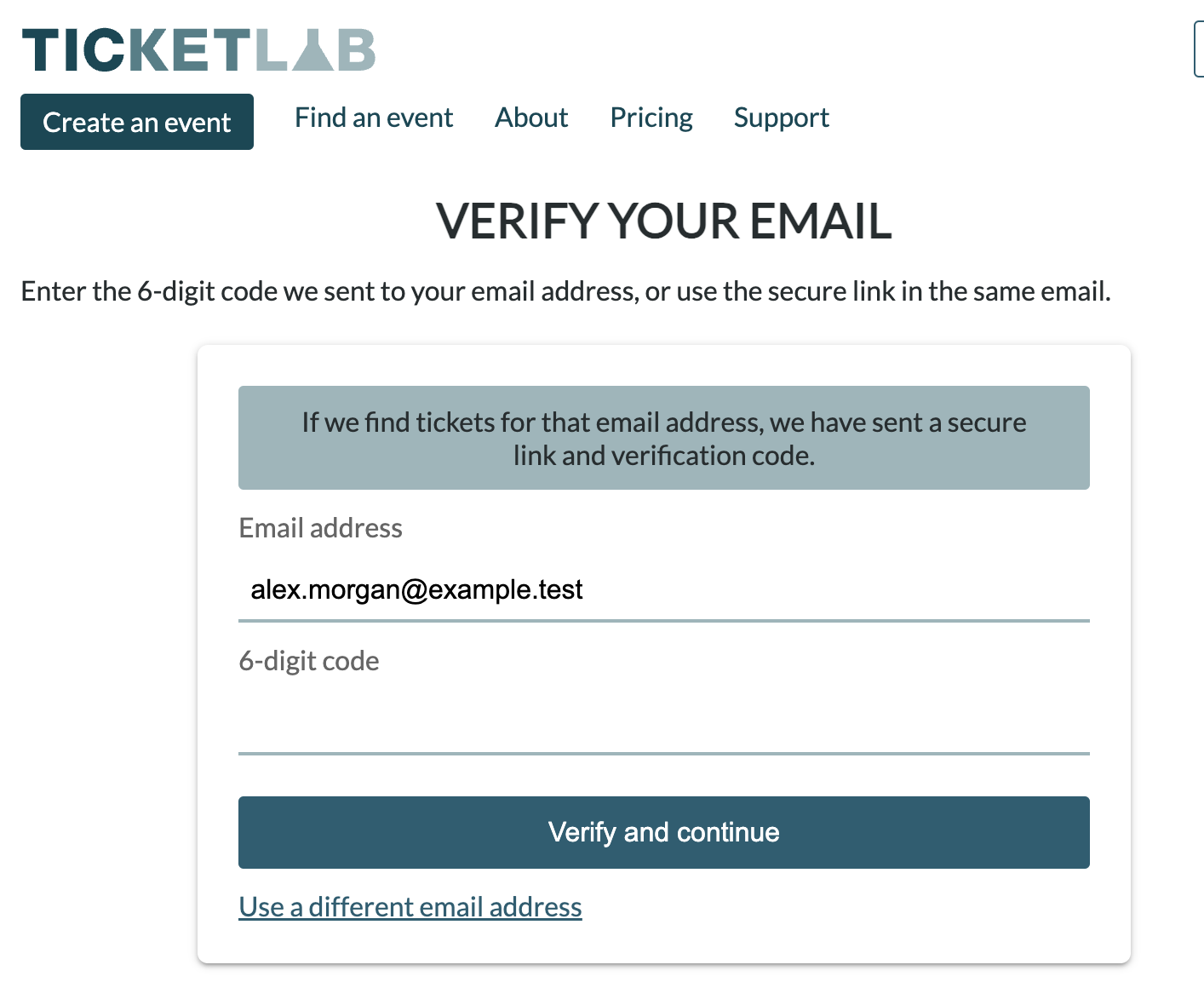
If the link or code has expired, go back and send a new one.
If you did not request the email, ignore it. Nothing on your tickets has changed.
Organisers use Log in on that page to run their events.
Your tickets
After you sign in, Your tickets lists Upcoming events, then Past events. Each row shows the event name, date, status and ticket code.
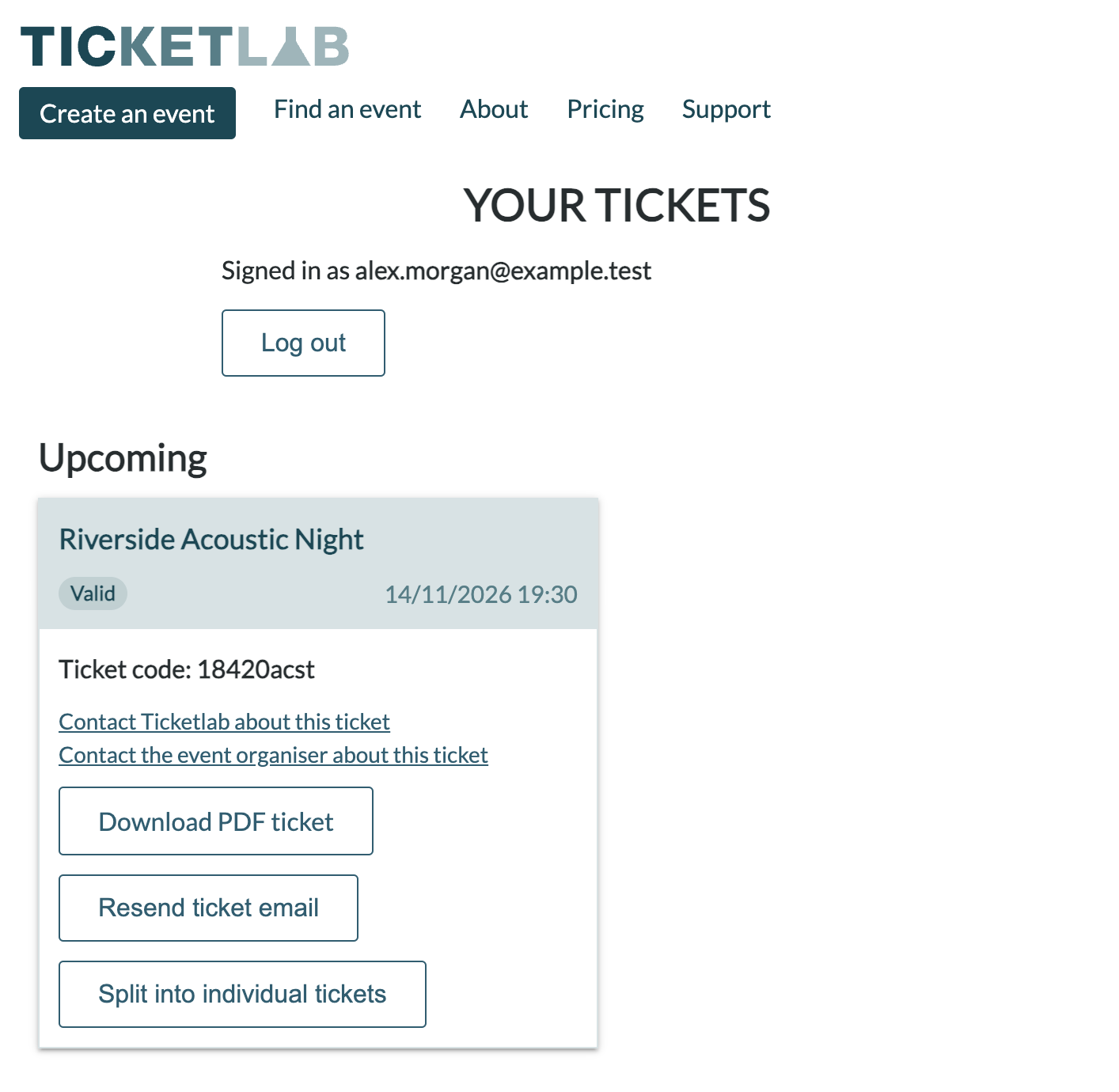
Upcoming tickets are open, with download, resend and split when those actions apply. Past events stay in the list so you can look up the code.
A normal ticket shows Valid until door staff admit it, then Admitted. Cancelled and Refund pending mean download and resend are no longer available. After you split a booking, the original row is replaced by one ticket per person. Each of those shows Unclaimed until door staff admit it, then Claimed.
Contact Ticketlab about this ticket and Contact the event organiser about this ticket are on every row.
If the page says No tickets found for this email address, press Log out and try the address the booking was made with.
Download or resend
Download PDF ticket saves a PDF of that ticket.
Resend ticket email sends the same confirmation again, to the address on the ticket. The subject is still Your tickets: followed by the event name. See Buying tickets for what that email contains.
You can resend once an hour. If you have just sent one, the page says a ticket email was already sent in the last hour, and when you can send another.
Split a group booking
If one booking covers more than one person, and the event has not happened, you may see Split into individual tickets.
The page asks you to confirm. Splitting creates one ticket per person, using the quantity on the booking, and it cannot be undone.
You then land on Individual tickets. For each person, enter First name, Last name and Email, and press Save details. When everyone is filled in, press Send tickets to all recipients. Each person receives their own ticket and QR code.
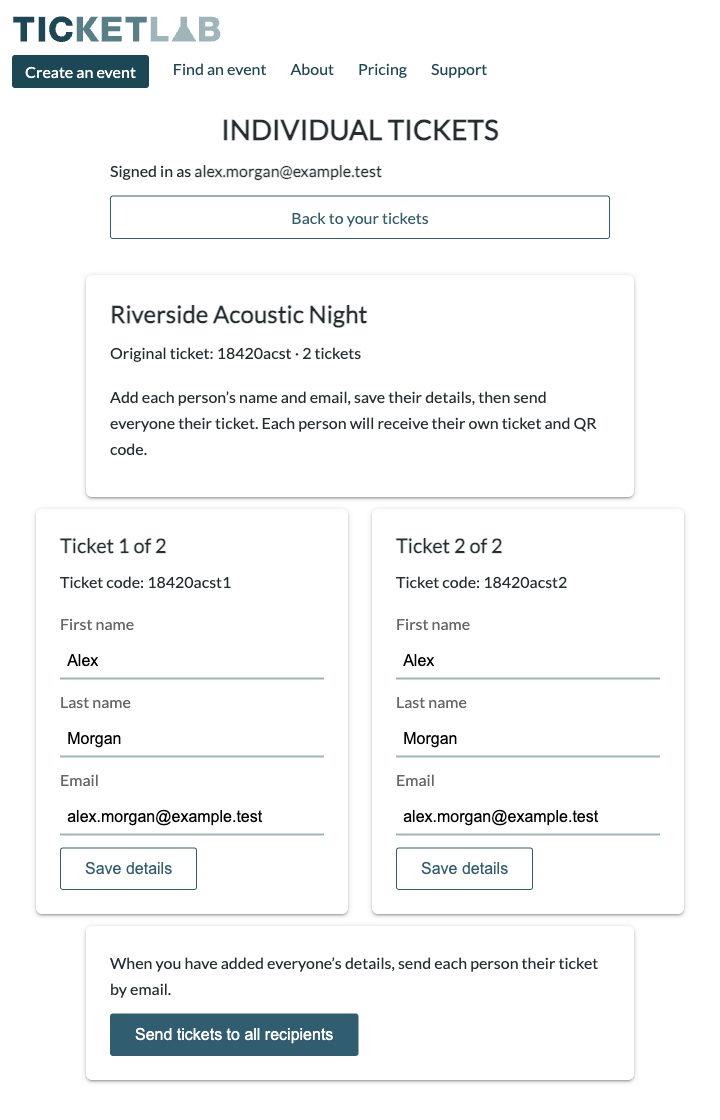
Manage attendee details brings you back to that page. Only the original buyer sees it. Someone who was sent their own ticket can open Manage tickets with their email and see that ticket, but they cannot edit the rest of the group.
Back to your tickets returns to the list.
Need help?
Contact Ticketlab and include the ticket code from your list or from the confirmation email. You can also message the organiser from the event page, under Questions about this event?
Leave a Reply
You must be logged in to post a comment.